

Modules
Database
A feature packed module that will allow you to edit, move, and manipulate your data with ease.
There are six main components to the Database page.
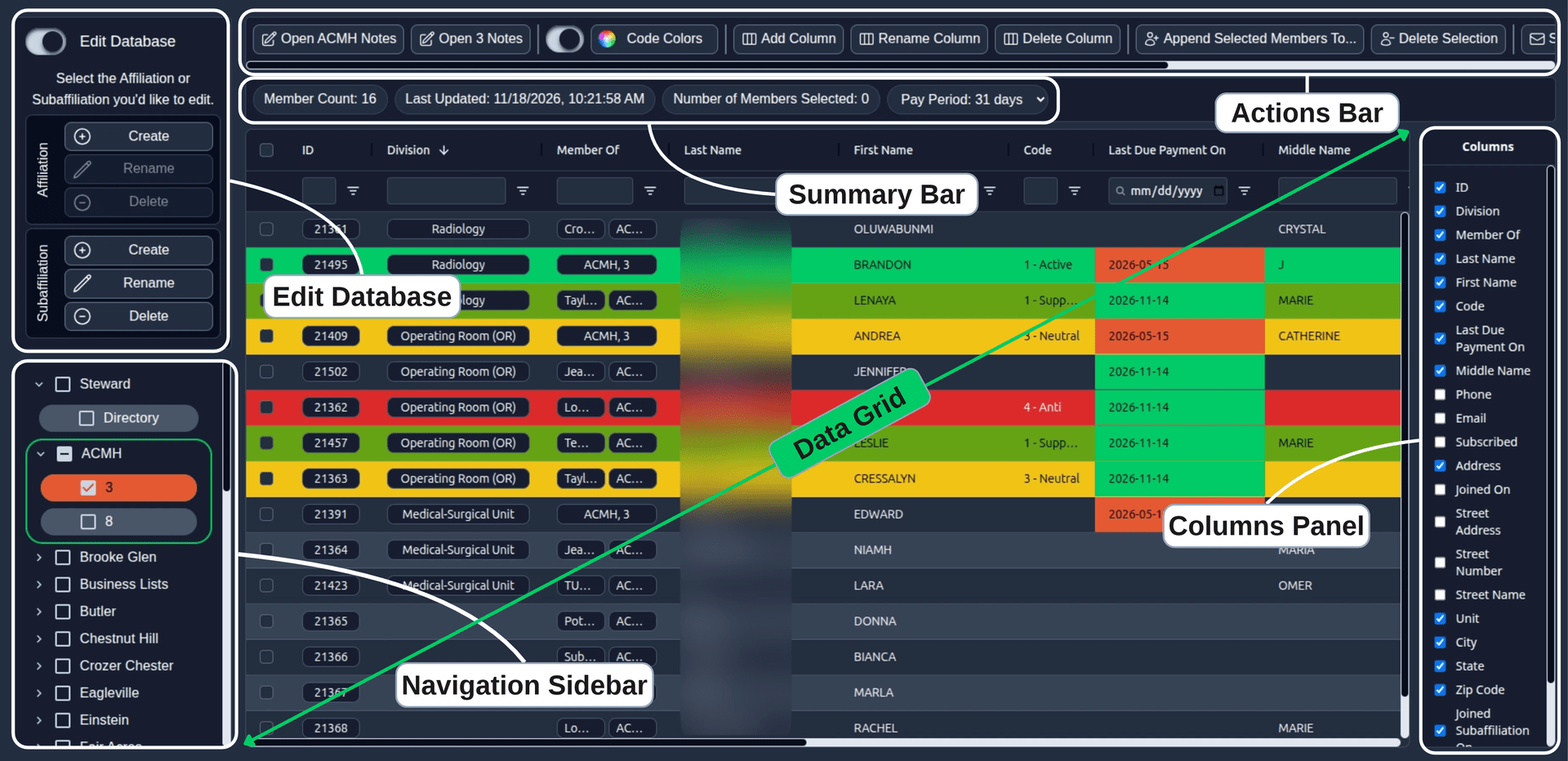
Edit Database
On the upper left corner, the Edit Database toggle gives you access to the various actions you can take to edit the Affiliation and Subaffiliation layers of your database. When you switch the toggle on, you will note that the navigation tree below will reveal checkboxes next to each Affiliation and Subaffiliation layer. You can select any Affiliation or Subaffiliation to see which actions are allowed from that selection:
- You can Create an Affiliation without any selections.
- You can Rename or Delete an Affiliation after selecting it.
- You can Create a Subaffiliation after selecting the Affiliation under which you want to place the new Subaffiliation.
- You can Rename or Delete a Subaffiliation after selecting it.
Navigation Sidebar
All Affiliations and their associated Subaffiliations are listed in the navigation sidebar on the left-hand side of the Database page. You can expand and collapse Affiliations to see the Subaffiliation tables under each one. The selected Subaffiliation table that is in view will be highlighted in green. If you click the checkbox next to a Subaffiliation table to select it to be edited via the Edit Database component, the Subaffiliation will be highlighted in orange.
The Actions Bar
At the top of the page, you can see a series of buttons allowing you to take various actions to manipulate your data and to engage with your membership. We provide an overview of each action here:
| Action Label | Description |
|---|---|
| Open Affiliation Notes | Opens side panel to reveal any notes taken for the Affiliation containing the Subaffiliation in view. |
| Open Subaffiliation Notes | Opens side panel to reveal any notes taken for the Subaffiliation in view. |
| Code Colors Toggle | Switches row highlights on and off for the Code column. |
| Code Colors | Opens Code Colors pop-up to allow users to create new campaign assessment codes and to select the associated row highlight and text colors. |
| Add Column | Opens Add Column pop-up to allow users to create custom columns with their choice of data type. |
| Rename Column | Opens pop-up allowing users to select a column and update its name. |
| Delete Column | Opens pop-up allowing users to select a column to delete. |
| Append Selected Members To... | Copy selected members in the Subaffiliation table in view to another Subaffiliation table. |
| Delete Selection | Opens pop-up to confirm user's intention to delete the members selected in the Subaffiliation table in view. |
| Send Email | Opens email pop-up to send emails to the selected members in the Subaffiliation table in view. |
| Export All Rows | Will export all the rows from the Subaffiliation table in view. Will not include hidden columns. |
| Export Selected Rows | Will export only the selected rows from the Subaffiliation table in view. Will not include hidden columns. |
| Convert To User | Opens pop-up allowing Admin users to create a new user from a selected member and to give them access to their Division or Subaffiliation. |
Summary Bar
The component below the Actions Bar provides some quick numbers on the Subaffiliation table in view:
- The Member Count pill provides the total number of members in the current Subaffiliation table.
- The Last Updated pill provides the last time the Subaffiliation table in view was edited.
- The Number of Members Selected pill provides the count of any selections you might have made in the table.
- The No Dues Highlights dropdown menu lists payroll periods to highlight the Last Due Payment On column red or green depending on whether a member is lapsed or current. The options include 1 year, 31 days, 30 days, 14 days, 7 days for various payroll periods across workplaces. Setting it back to No Dues Highlights will remove the highlights.
Data Grid
The main component on this page is the data grid showing the Subaffiliation table selected from the Navigation Sidebar. Here is a non-exhaustive list of the grid's capabilities:
- Sorting: Click any column name to sort by that column's values. Press Shift and click other column names to sort using multiple columns.
- Resizing Columns: Use the handle bars between column names to resize any column.
- Moving Columns: Drag and drop columns to new positions. The order of your columns will be preserved for your next visit in the Columns Panel.
- Row Filtering: Filter rows based on column values using the column filter input field below the column name. Build more complex filters using the AND and OR options from the filter menu and by filtering on multiple columns.
- Selection: Click any checkbox at the beginning of each row to select a row. You can also press Shift and select a second row to select the range of rows between two rows. Selections can be used to create custom email lists (use the Send Email button in the Actions Bar) and to export member subsets from Subaffiliation tables (use the Export Selected Rows button in the Actions Bar).
- Editing: Double click any cell (with some exceptions) to edit its values. Hit Enter or click outside the cell to save.
Specialized Columns
In StewardDB, there are several specialized columns that have their own distinct features. We provide an overview here:
- ID: The ID column appears both in the Steward.Directory table and in the custom Subaffiliation tables you create. These values represent the unique member IDs assigned to every member you add to your database. These ID numbers appear as buttons in the data grid. When clicked, they open the side panel that reveals a dedicated page for each member that includes their basic contact information, their history of Affiliation-Subaffiliation-Division membership, any notes that your users have written about them, and finally, their complete communications history (this currently includes all emails received by this member).
- Member Of: The Member Of column includes a list of all current and former Affiliation-Subaffiliation memberships across your database for the member. These also appear as buttons and are links to those Subaffiliation tables. When a member is deleted from a particular Subaffiliation table, the button will be disabled and faded out to inform you of this member's history.
- Division: The Division column appears only in Subaffiliation tables and will not be present in your Directory. Division columns also appear as buttons. When clicked, they reveal a small menu with the options to View Notes and to Edit Division. The former will open the side panel that holds the notes for this Division. The latter opens the pop-up which allows for editing the values of the Division. You can edit a member's Division by selecting an existing Division from the dropdown or by entering in a new value in the same space. If you wish the edit the Division's name instead and ensure that the Division name updates for all members in the Division, check the checkbox in the pop-up.
- Code: This column, like the Division column, only appears in Subaffiliation tables. It is meant to track campaign assessment codes common among labor or electoral organizers such as "Anti", "Neutral", "Supporter", "Active", etc. The codes are completely flexible. Click the Code Colors button in the Actions Bar to create your own codes and to select their highlight colors. Then, when you double-click on a Code cell in your data grid, you will see a dropdown menu with the codes you created. After you select one, if your Code Colors toggle is on, you will be able to see the row with the associated highlight color.
- Last Due Payment On: This column is closely integrated with payroll/dues data uploads and the dropdown menu in the Summary Bar which is set to No Dues Highlights by default. When StewardDB detects that your dataset includes data about dues, it will update this column either with the date value from your dataset or, if there is no such value, it will use the date of the upload as the date of payment. When you switch the selection in the dropdown menu in the Summary Bar, this column will update with red and green highlights for memberships that have lapsed and remain in good standing, respectively.
Columns Panel
The final component on the Database page is the Columns Panel on the right hand side. This panel allows you to hide or reveal columns in any given Subaffiliation table to ensure that the data grid remains manageable even after years of use when you have added many columns creating broad tables. Currently, these layouts are shared across all users, but personalized layouts are on our roadmap.